Users and Roles
Platform-level management tasks are accessed via the settings button (  ) in the bottom-left corner of the Utilihive Console. Most of these options are only available to admin users. ) in the bottom-left corner of the Utilihive Console. Most of these options are only available to admin users.
|
Viewing Users
To view the users in your organization, select Organization from the left-hand navigation menu. The default tab is the Users tab, which looks like the following image:
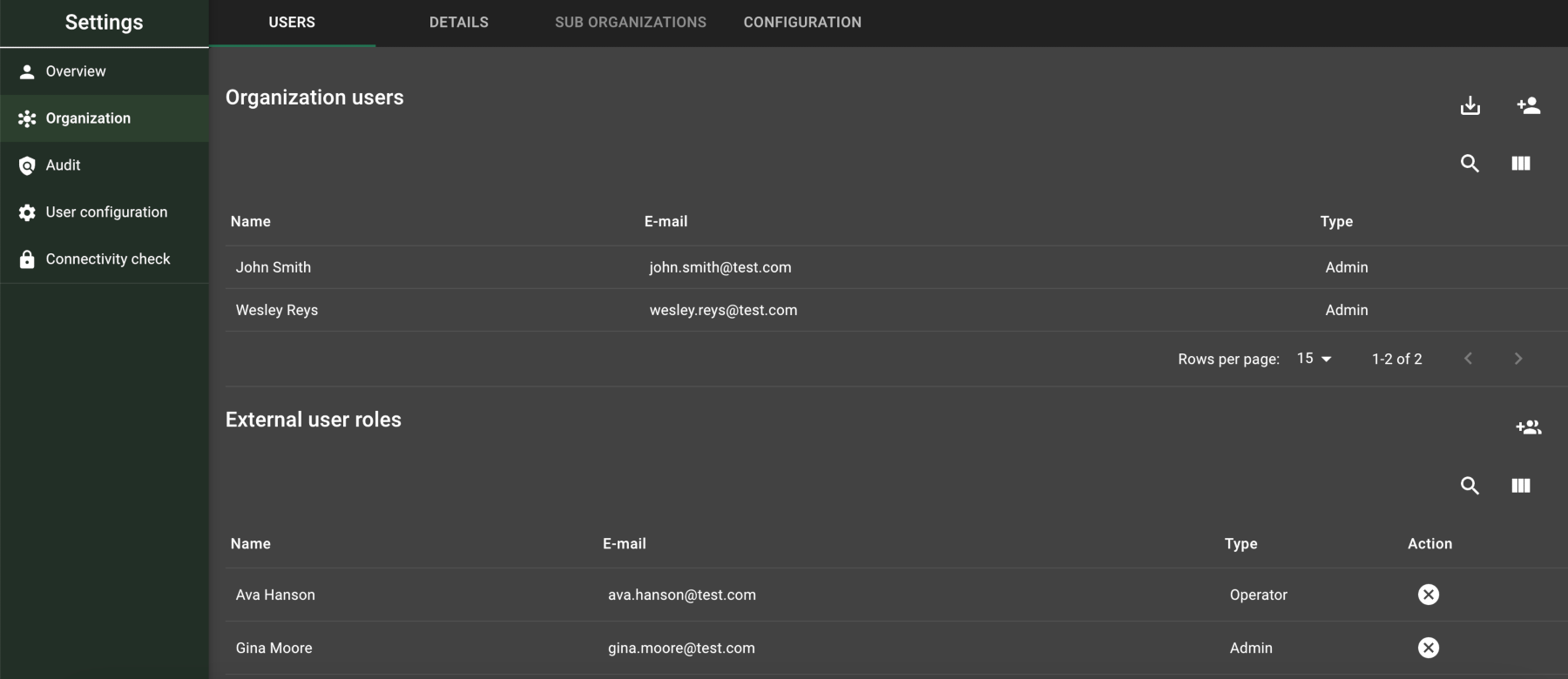
Users are categorized as either "organization users" or "external users." External users belong to a parent organization but are granted access to the current sub-organization.
Select the save button (  ) in the top-right corner to download a CSV file of the user data. This data includes organization and external users. An example output with both types of users looks like the following:
userId;email;name;phoneNumber;organizationId;role;createdDateTimeUtc;createdByUserId;updatedDateTimeUtc;updatedByUserId;lastLoginDateTimeUtc
260;test.user@mycompany.com;Test User;+47 55555555;3;Admin;2021-09-14T14:18:13.521;159;;;2021-09-14T14:19:31.36
205;other.user@mycompany.com;Other User;;1;Operator;;;;;
Creating a User
To create a new organization user, select the add person button (  ) in the top-right corner. Provide a name, email address, phone number, and role. The user sets the password after accepting the email invitation.
User Roles
The Utilihive Console supports the following user roles:
| Role | Description |
|---|---|
Admin |
A full-rights user with integration and platform-level rights, including the ability to create and manage other users in the system. |
Deployer |
A development-oriented user that can deploy and update flows and resources and manage flow access. |
Monitor |
A "read-only" user that can view flow traces and flow details but isn’t allowed to make edits. |
Operator |
A user similar to a Monitor who also has access to accelerators. |
Agent |
A system user only used to send flow details from a Beatbox installation to the main flow-server. |
Billing |
A user that needs to exist in the system for billing purposes but doesn’t have access to any Utilihive features. |
Updating User Roles
To change an organization user’s role, select their name from the list, then select the edit button (  ) under role actions.
If you need to change an external user’s role, first remove the user by selecting the cancel button (  ), then re-add the user by selecting the group add button (
  ).
).